Add a new user component task
Creating a new user component element to add to a user composite task
Overview
When you create a new composite task you have the choice of using existing defined components or creating your components from scratch. If you know that the components do not already exist then you should create the new components first, then create the composite task and allocate the components to it.
Follow these steps to create a new user component element.
The start screen

You must be logged on to Flow360 as a surveyor with the ability to add tasks (this is assigned by Flow360 admin - please contact support if you require this capability).
The main start screen buttons confirm whether you can add tasks or not. If you can add tasks you will see an All tasks button on the main start screen.
Click this button to start building a new user task.
Confirm choice
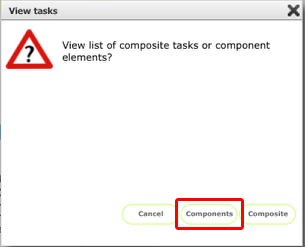
Click Components to go to the components list to start adding a new component task.
The component tasks list
To create a new component element, click the New button on the composite tasks list (this is a dual purpose button which allows you to create either a new composite task or a new component element)
The new component element card

The new component will be preset as a User component (1). Enter the new component code (2), details (3), description (4) and method (5). Also enter the costs breakdown and unit of measure for costings (6).
When you are finished, click the Back button to return to the Composite tasks list (7)
NOTES:
- You can also create new components by clicking the New button on the component's card, or from the New button on the Component list.
- You can create multiple component tasks and then use these as component elements of composite tasks as required