Cost remits
Setting the cost remits for a service provider, including cost-plus and flexi-contract options.
Go to the contact (service provider) card
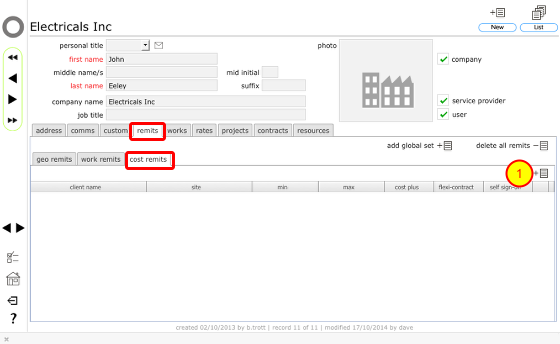
On the contact's card, click the remits tab to view, add and delete remits.
To add a new cost remit, click the cost remits tab. Then click the New button at the top of the cost remits tab list (1).
Confirm client for this remit
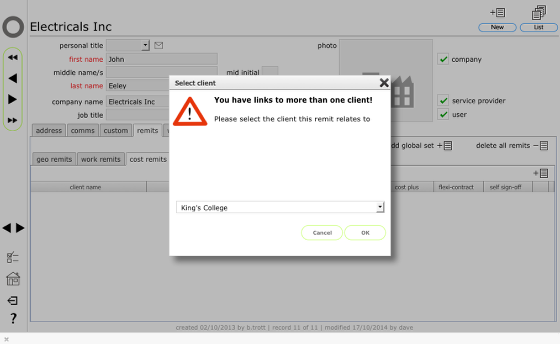
If you have links to more than one client you will see this dialog where you can confirm from the drop down list which client this remits will relate to. Select the client's name and click OK to continue.
Confirm site specific remit
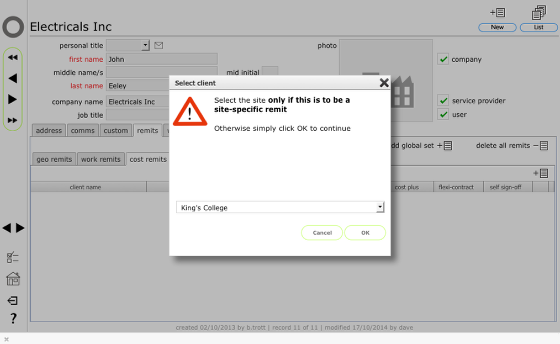
If you have links to more than 1 site you will see this dialog where you can specify a site specific remit if that is required. If you do not specify a site here then the remit will apply to all sites for the client.
Click OK to continue.
The cost remits list
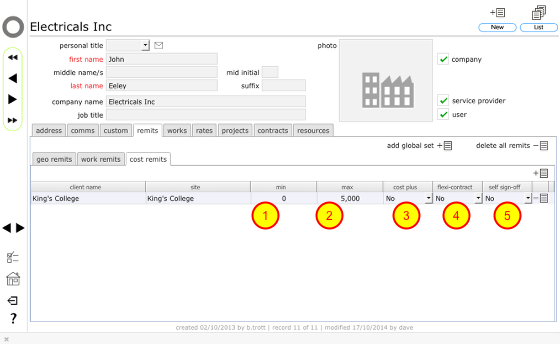
The new remit will be added to the list. You now need to set the minimum (1) and maximum (2) value that this remit covers for this service provider.
- If the minimum value is greater than 0 then this service provider will not be included in the draft enquiries or orders list unless the total value of the enquiry or order is greater than the minimum value entered here as the cost remit for the relevant client.
- Conversely, this service provider will not be included in the draft enquiries or orders list if the total value of the enquiry or order is greater than the maximum value entered here as the cost remit for the relevant client.
You can also specify whether the service provider has a cost-plus (3) and/or flexi-contract (4) remit and whether they have self sign-off (5) capability.
- A cost plus remit allows the service provider to add overhead and profit elements when returning tenders.
- A flexi-contract remit allows the service provider to make substitutions, add new items and abort items once a works order is under way without referring back to the issuing manager.
- Self sign-off capability means that any works order issued to this service provider will be fully signed-off when the service provider confirms that all works are complete. If sel sign-off is set to No then final sign-off will have to be confirmed by an appropriate manager or surveyor.
Removing a cost remit
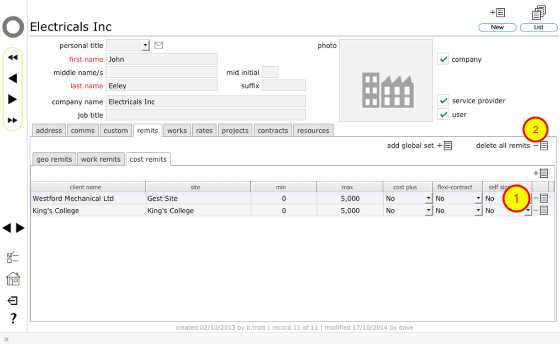
To remove a cost remit click the Delete button (1) for the relevant remit.
NOTE: You can also remove ALL remits in one go (geo, cost and worktype) for a selected client using the delete all remits button (2).
Confirm action
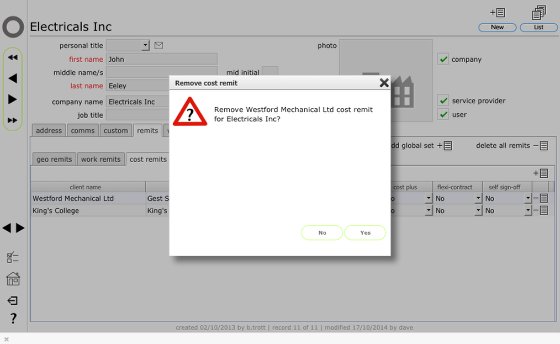
Click Yes to remove the remit.