Employee teams
Overview
Employee teams can be set up by client admin or manager users for their own in-house employee teams and by service providers for their own employee teams. Once a team is established and remits allocated to team members or to the team as a whole, works enquiries and orders can be issued for individual team members or for the team in general.
Orders that have been issued to a team can be re-assigned to an individual operative as required.
Helpdesk issues can also be assigned to a team rather than to an individual, provided that the 'shared access' checkbox is ticked on the relevant team record. This allows any member of the team to assume control of any open Helpdesk issue.
Setting up internal teams (client / employer)
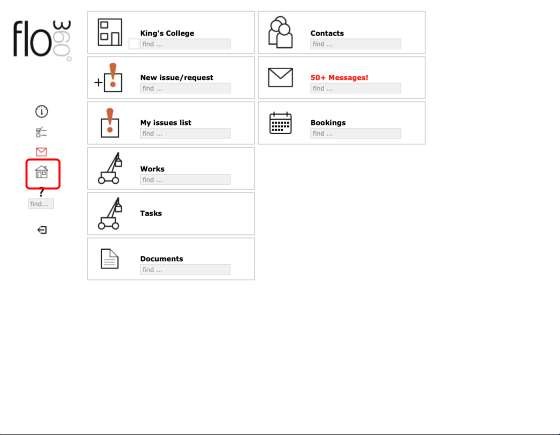
Client admin users, Providers and Managers with Qualifications access can set up teams for their internal workforce. Employee teams are set up from the Client's home page, the service Provider's home page or the Manager's home page. Start by clicking the Home button on the start screen.
NOTE: If your home page setup does not include the main Home button you can also use the mini home button that is visible on all screens.
Go to Client / Manager / Provider home
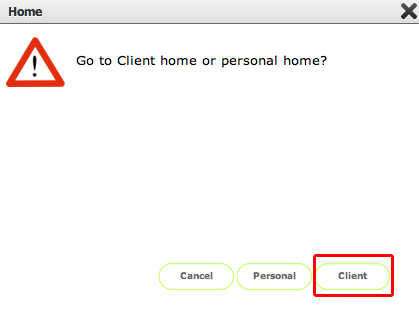
Click the Client button to confirm your choice or if you are a Manager click the Manager option.
NOTE: Service Providers have similar options. Managers with access to employee records can similarly access the employee teams on their manager home.
The client / manager home record
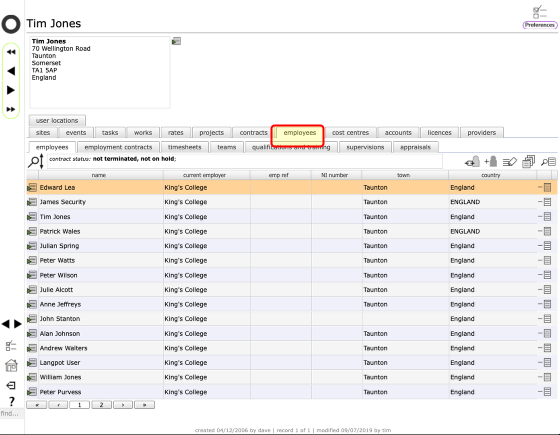
On the home card, click the employees tab
The employees tab
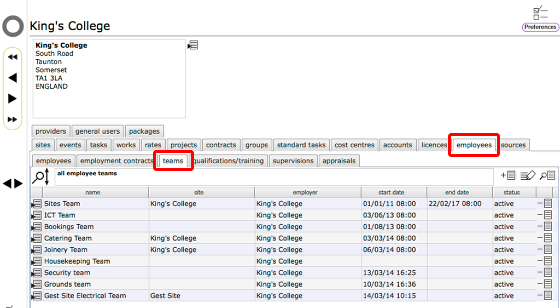
The employees tab has sub-tabs which can include:
- all employees
- employee contracts
- employee teams
- employee qualifications
- employee supervisions
- employee appraisals
NOTE: To add employees to teams the relevant contacts must be already set up as employees! To do this, please review the lesson on adding employees
Add a new team
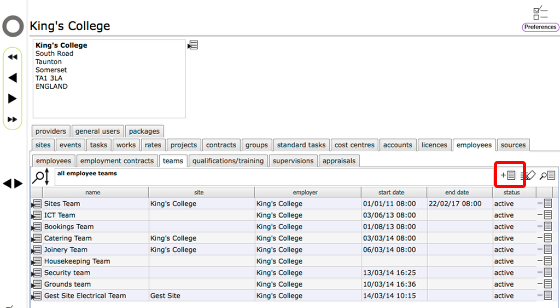
To add a new team, click the New button on the teams tab.
Add new team details
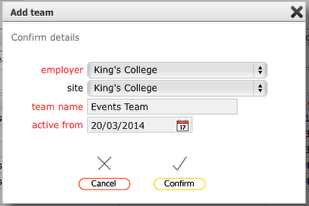
Confirm the new team details.
The fields for employer, team name and active from (date) are required.
Only select the site if the team is to be restricted to activities on a specified site.
Click Confirm to add the team.
The employee team card
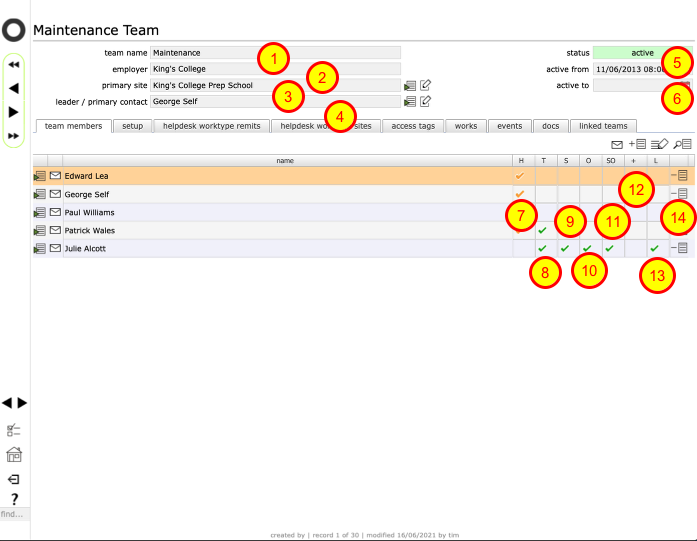
The team card gives details of...
- the team name
- the team employer
- the team site (optional)
- the team primary contact (leader)
- current status of the team
- active dates for the team
- H - a tick in this column means the team member cannot sign-off Helpdesk issues directly - 2nd stage sign-off is required from relevant manager
- T - a tick in this column means the team member is directly selectable as targets for Helpdesk issues
- S - a tick in this column means the team member can self-assign new Helpdesk issues
- O - a tick in this column means the team member can issue direct orders from their assigned Helpdesk issues
- SO - a tick in this column means the team member can sign-off orders that they have issued themselves
- + - a tick in this column means the team member can sign-off orders issued by other members of the team and close issues where another team member is in charge
- T - a tick in this column denotes shared lead capability - the team member has the same level of access to manage the team as the specified team lead
- Click this button on the relevant row to remove a team member from the team
You can indicate who the primary contact/team lead is for the team by clicking the change button next to the leader / primary contact field (4). Select a new contact from the list and click Confirm to allocate a new primary contact.
Similarly you can assign a team to a specific site only using the change site button to the right of the site field (3).
To add a new team member to the team, click the New button on the team members tab list (11)
NOTES:
- Only employers and managers can change the team leader. The team leader will be able to review all orders sent to any team members, thus providing an oversight of all activity for their team
Add an employee to the team
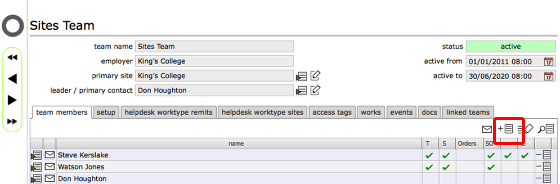
Click the add team member button.
Confirm action
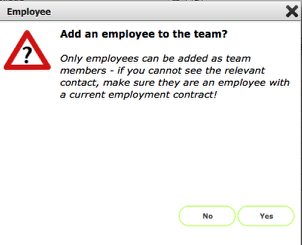
If you are logged in as anything other than a Manager, please note the stipulation that only employees can be added to teams.
If you are logged in as a Manager then you can also add external service providers with remits to internal teams where required.
Click Yes to continue.
Select employee/provider to add to the team
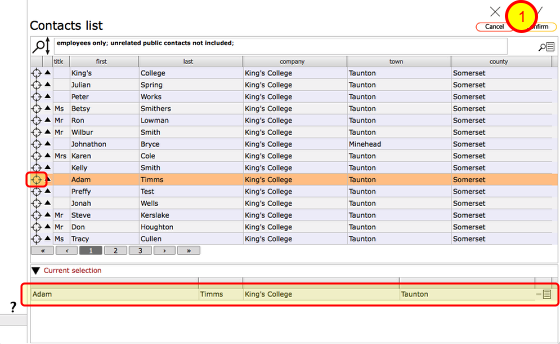
Select the employee (or service provider) to add to the team by clicking the target button on the appropriate row - the employee will be added to the Current selection list at the bottom of the screen. Click the Confirm button to add the employee.
The contact selected will be added to the team. Add other team members in the same way.
Further reading
You might also be interested in these lessons: